
How to Keep Your WordPress Site Updated

How to Keep Your WordPress Site Updated
Running a WordPress site isn’t just about building pages and adding content—it’s about keeping your website fast, secure, and running smoothly. One of the simplest but most important steps to achieving this is regular updates. Unfortunately, many beginners overlook updates until they experience broken features or security breaches.
In this complete guide, you’ll learn exactly how to stay on top of updates for your WordPress site, why they matter, and how to do it safely without breaking your site.
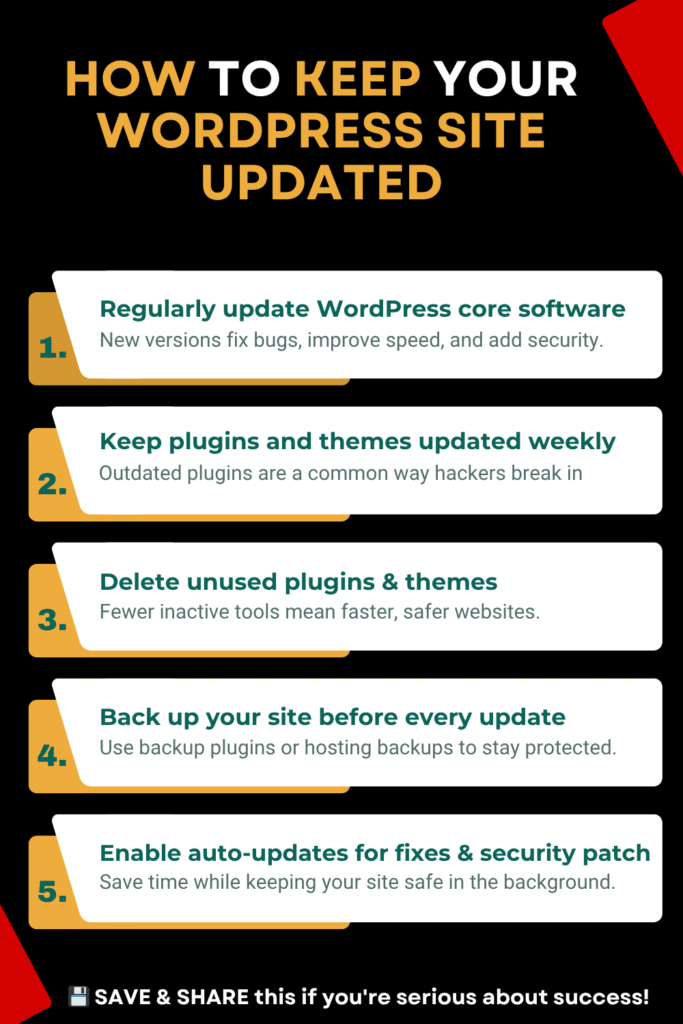
Regularly Update WordPress Core Software
Why Core Updates Are Critical
WordPress releases regular core updates to improve security, fix bugs, and introduce new features. Ignoring these updates puts your website at risk of hacking, compatibility issues, and poor performance.
Types of WordPress Updates:
Major updates: Usually release every few months, adding new features.
Minor updates: Focus on security patches and bug fixes.
Maintenance updates: Small updates to fix glitches or performance problems.
How to Update WordPress Core:
- Log in to your WordPress dashboard.
- Navigate to Dashboard > Updates.
- If a new version is available, click Update Now.
Pro Tip:
Enable automatic background updates for minor security releases but manually review major updates to ensure your plugins and themes are compatible.
Keep Plugins and Themes Updated Weekly
Why Plugin and Theme Updates Matter
Plugins and themes are third-party software you install to add features or change design. Outdated plugins and themes are common entry points for hackers.
Plugin updates bring new features, security patches, and bug fixes.
Theme updates improve design functionality and fix compatibility issues.
How to Stay Updated:
- Go to Dashboard > Updates.
- Select all plugins and click Update Plugins.
- Go to Appearance > Themes, and update active and inactive themes.
Example:
A business website suffered malware infections through an old slider plugin. Once they started weekly plugin updates, such issues stopped.
Pro Tip:
Check for updates weekly. Schedule a regular time, like Monday mornings, to review your dashboard and apply updates.
Delete Unused Plugins and Themes to Avoid Clutter
Why You Should Remove Unused Items
Even deactivated plugins and themes can create vulnerabilities if they’re outdated. Unused software also clutters your admin panel, making management harder.
How to Safely Remove Them:
- Deactivate plugins you don’t need under Plugins > Installed Plugins.
- Click Delete after deactivation.
- Remove inactive themes under Appearance > Themes.
Keep one default WordPress theme (like Twenty Twenty-Four) for fallback purposes.
Example:
A food blogger noticed their site slowed down. Deleting 15 inactive plugins improved site speed and reduced the risk of plugin conflicts.
Back Up Your Site Before Every Update
Why Backups Are Non-Negotiable
Sometimes updates can cause conflicts or break features. Having a recent backup ensures you can quickly restore your site if anything goes wrong.
Protect your content, design, and user data.
Avoid downtime caused by update errors.
Recover your website in minutes instead of starting from scratch.
Recommended Backup Methods:
- Plugin-based backups: Use plugins like UpdraftPlus or BackupBuddy to schedule automatic backups.
- Hosting-based backups: Many quality hosts provide free daily backups.
- Manual backups: Download site files via FTP and export the database via phpMyAdmin.
Example:
An online course site performed a plugin update without a backup and lost all course enrollments. Switching to automated backups with UpdraftPlus prevented future disasters.
Enable Auto-Updates for Minor Fixes and Security Patches
Simplify Updates with Automation
For non-technical website owners, auto-updates are a huge time saver. They help you apply critical security fixes without logging in manually.
Automatically apply security patches.
Reduce the risk of hacking.
Keep your site protected even when you’re busy.
How to Enable Auto-Updates:
- Core updates: WordPress automatically enables minor core updates.
- Plugin updates: Go to Plugins > Installed Plugins, click Enable Auto-updates for trusted plugins.
- Theme updates: Enable auto-updates from Appearance > Themes if your theme supports it.
Caution:
Use auto-updates for security fixes, but review major updates manually to prevent compatibility issues.
Final Thoughts: WordPress Updates Are Easier with Managed Hosting
Keeping your WordPress site updated doesn’t have to be a headache—especially when you choose a hosting provider that offers automatic backups, security monitoring, and managed updates.
If you want an effortless experience, Cloudways offers managed WordPress hosting with automatic backups, staging environments, and server-level security, making it easier to manage updates safely.
Alternatively, SiteGround provides beginner-friendly tools, automatic updates, and excellent customer support for WordPress users.
Choose a hosting partner that simplifies your website management, so you can focus on growing your online presence instead of worrying about technical details.